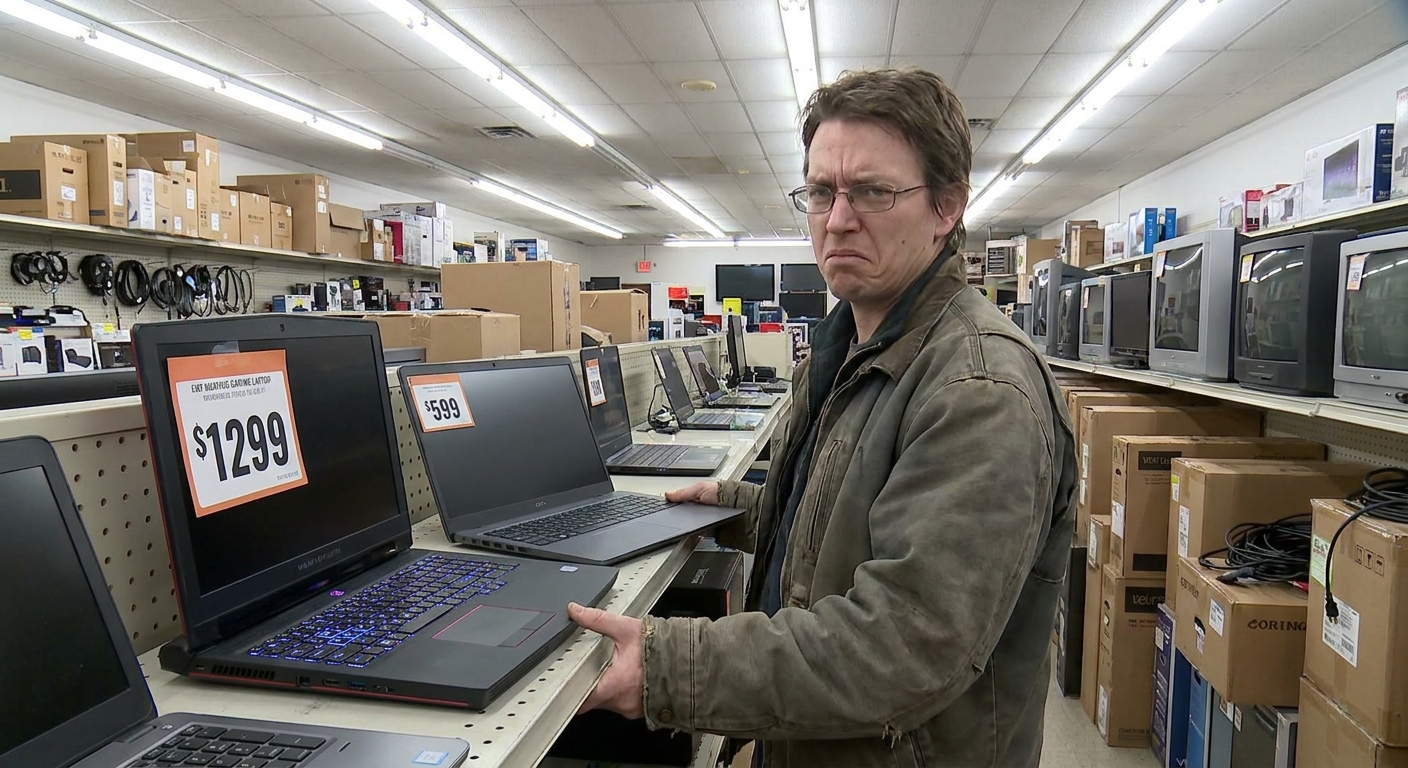
Everyone loves talking about GPUs, CPUs, and $1,000 phones. Meanwhile, your real daily pain points come from dumb stuff:
Stop Obsessing Over GPUs and Start Fixing Your Bottlenecks
- Wi‑Fi that dies in the next room
- A full, slow hard drive
- A cable mess that looks like a horror movie
This is a buying guide for the boring gear that quietly makes everything better: routers, SSDs, power strips, and a few other workhorses.
1. Routers: Your ISP Modem Is Probably Trash
If you’re still using the router/modem combo your ISP shoved at you, there’s a decent chance it’s:
- Underpowered
- Poorly placed
- Running firmware older than your favorite meme
What You Actually Need to Decide
Apartment / Small Home (1–2 bedrooms):
- A single decent dual‑band router usually does the job.
Larger Home / Multi‑Floor:
- Consider mesh Wi‑Fi (multiple units working together).
Specs Without the Nonsense
Ignore the absurd "AX9000 Super Giga" naming.
Look for:
- Support for modern Wi‑Fi standards from the last couple of years
- At least two Ethernet ports (more if you like wired)
- $70–$150 for a solid single router.
- $150–$300 for a 2–3 unit mesh kit for bigger homes.
Spend roughly:
Setup Basics (Do This Once, Be Happy Later)
- Place main router central, not buried behind a TV or inside a cabinet.
- Use the app or web setup, change the default admin password.
- Set a single network name (SSID) for all bands unless you know why you want separate ones.
2. SSDs: The Cheap Upgrade That Feels Like a New PC
If your PC or laptop still runs on a spinning hard drive, that’s your biggest bottleneck.
Types (Simplified)
- 2.5" SATA SSD: Works in older laptops/desktops. Still a massive upgrade over HDD.
- NVMe (M.2): Much faster, common in newer systems. Plugs directly into the motherboard.
How Much to Spend / Get
- 500 GB: Fine for light users or secondary drives.
- 1 TB: Sweet spot for most.
- 2 TB+: For gamers and media hoarders.
- Solid user reviews
- Warranty length
Price‑wise, SSDs are cheaper than your last bad takeout weekend. Don’t overthink brand marketing; stick to well‑known names and buy based on:
Simple Migration Plan
- Plug new SSD in (internal or via USB adapter).
- Use free cloning software to copy your old drive.
- Swap drives and set the new one as the boot drive.
If that sounds like wizardry, ask a tech‑savvy friend or pay a shop once. It’s worth it.
3. Power Strips and Surge Protection: Stop Plugging $2,000 of Gear into a $5 Brick
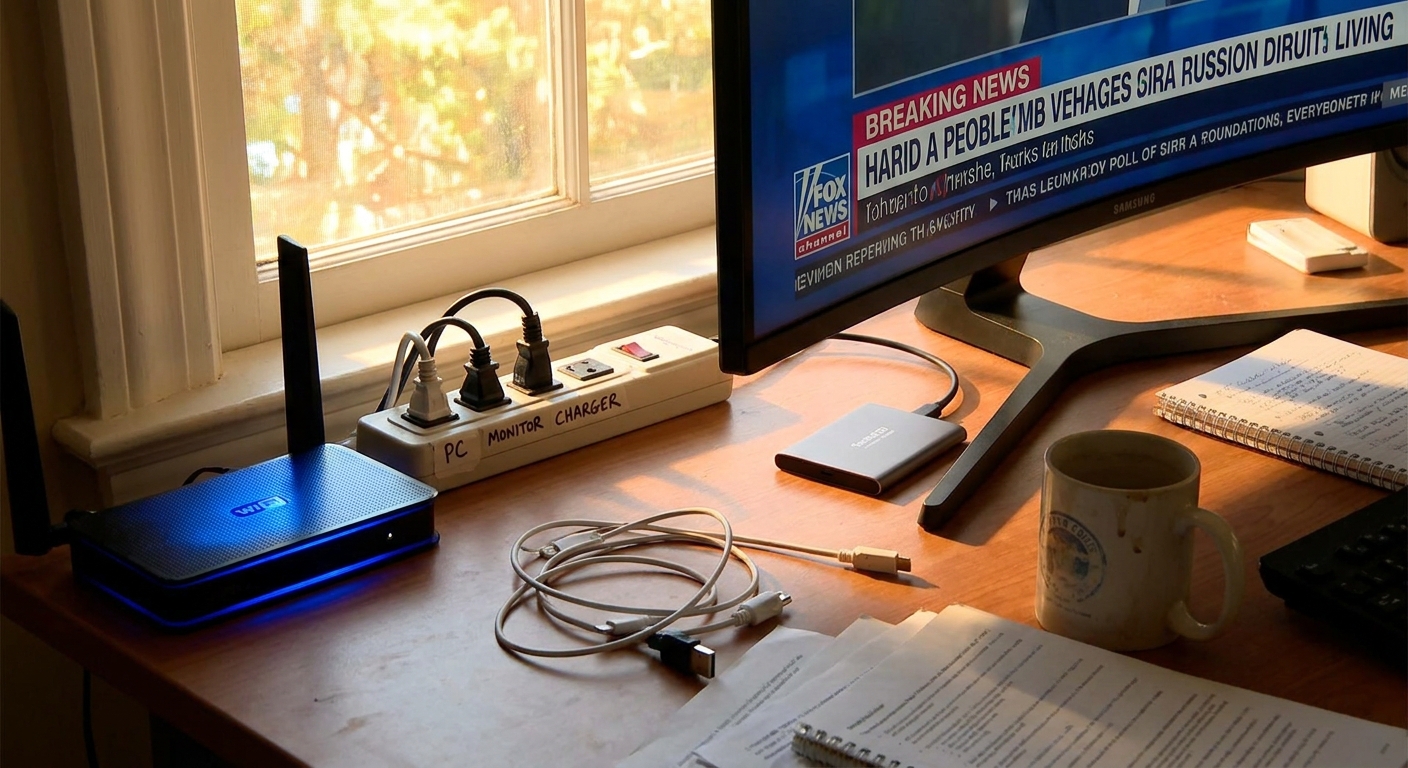
That old yellowed power strip? It’s probably just a splitter, not protection.
What You Actually Want
- At least one decent surge protector for your main setup (PC/TV/console).
- Spacing that fits big adapters without blocking everything.
Features Worth Paying For
- Actual rated surge protection (not just “protection light” buzzwords).
- Enough outlets for your current gear plus a couple extra.
- Optional: USB ports if you like charging from the strip.
Price range: $20–$50 gets you something much better than the sketchy bargain bin strip.
Good Habits
- Don’t daisy‑chain multiple strips unless you enjoy risk.
- Replace surge protectors every few years; they wear out quietly.
4. Cables: The Silent Performance Killer
A bad or ancient cable can bottleneck everything and make you blame the wrong gear.
HDMI Cables
You don’t need “gold‑plated diamond core” nonsense.
You do need cables that support:
- The resolution and refresh rate you’re using.
For 4K TVs/monitors at higher refresh, buy from reputable brands that explicitly list their capability.
USB‑C Cables
Not all USB‑C cables are equal.
- Some do high‑speed data + video + power.
- Some barely do power.
- Power rating (watts)
- Data rating (e.g., USB 3.x vs basic charging)
Check for:
Label your cables or keep the good ones separate. Future‑you will be less confused.
5. External Storage: Backup or Enjoy Stress
If your important stuff lives on exactly one device, you’re trusting hardware to never fail. Spoiler: it will.
What to Get
For simple backup:
- A 1–4 TB external drive (HDD is fine if speed isn’t critical).
- Portable SSD, more expensive but way faster and tougher.
For fast work drive:
Minimal Backup Strategy
- Plug drive in once a week.
- Copy Documents, Photos, and anything you’d cry over losing.
- Or use built‑in backup tools (File History, Time Machine, etc.).
Is it exciting? No. Is it the only thing between you and “I lost everything”? Yes.
6. Cheap Peripherals That Dramatically Upgrade Daily Life
Mouse & Keyboard
That $10 set you got with your PC is doing your wrists no favors.
- Spend $30–$80 on a decent keyboard.
- Spend $20–$60 on a proper mouse that fits your hand.
Try different shapes if possible. Comfort > brand.
Laptop Stands and Basic Ergonomics
- A cheap stand plus external keyboard + mouse turns a hunchback laptop setup into something your spine might survive.
Priority List: Where to Upgrade First
If your setup feels bad but your budget is limited, hit things in this order:
SSD upgrade (if you’re still on HDD)
Router or mesh Wi‑Fi (if your connection is unstable or dead in rooms)
Proper power + surge protection for expensive gear
External drive for backup
Keyboard, mouse, and basic ergonomics
These changes are boring to brag about but huge in everyday use.
Verdict: The Boring Stuff Makes the Good Stuff Shine
Your fancy GPU, 4K TV, and shiny phone are chained to unglamorous basics: power, storage, and network.
- Stop tolerating awful Wi‑Fi from a landfill‑grade ISP box.
- Stop running a high‑end PC off a rusty hard drive.
- Stop plugging everything into a $5 strip that might die in a storm.
Upgrade the infrastructure once, and your existing gear will suddenly feel like it leveled up. No RGB required.