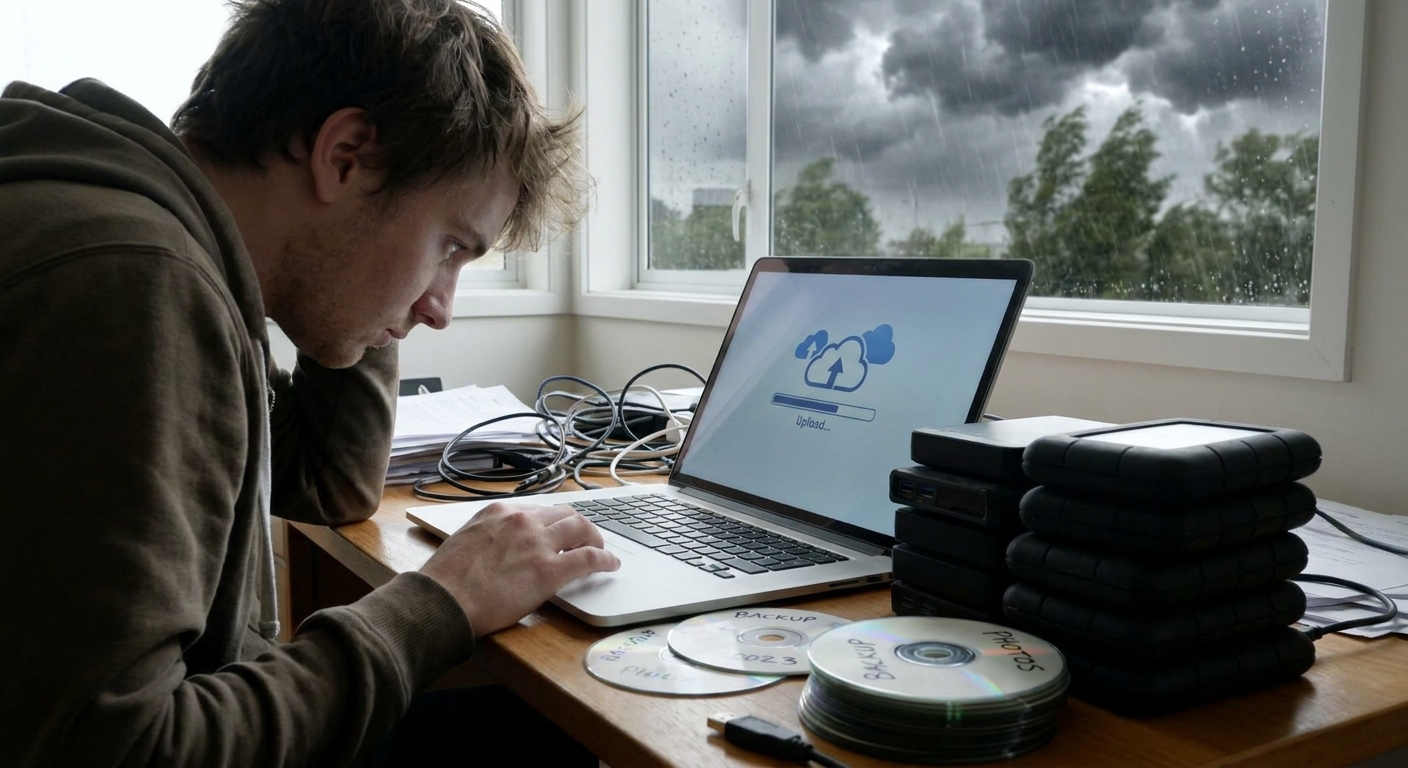
Hard drives fail. Laptops get stolen. Cloud accounts get locked. If you don’t have backups, you’re betting everything—photos, work, passwords, tax docs—on blind luck.
Your Data Will Die. The Question Is When.
Instead of pretending it won’t happen to you, set up a backup system that survives spilled coffee, theft, and your own laziness.
The Rule: 3–2–1 or You’re Just Hoping
Serious backup people use this simple rule:
- 3 copies of your data.
- On 2 different types of storage.
- 1 copy offsite (not in your house).
Sounds overkill until you picture losing everything in a fire, burglary, or simple drive failure.
You don’t need a data center. You need:
- Your main device (that’s copy #1).
- A local backup drive (copy #2).
- A cloud backup (copy #3, offsite).
Step 1: Get a Real External Drive
If your entire life is on a laptop, buy a drive. It’s cheaper than therapy for data loss.
What to Buy
For most people:
- Portable external SSD or HDD.
- Capacity: At least 2× your internal storage.
Price ballpark (USD):
- 1TB portable HDD: $40–$60.
- 2TB portable HDD: $60–$90.
- 1TB portable SSD: $70–$120.
- 2TB portable SSD: $120–$200.
HDDs are cheaper, SSDs are faster and tougher. For pure backup, HDD is fine; if you’re impatient or moving it around a lot, SSD is nicer.
Step 2: Turn On Automatic Local Backups
On macOS: Time Machine
You literally have no excuse.
- Plug in your external drive.
- When macOS asks, choose Use as Backup Disk.
- Or go to System Settings → General → Time Machine.
- Select the drive, turn Back Up Automatically on.
That’s it. It quietly backs up hourly when plugged in.
On Windows: File History or Imaging
Windows is worse at not hiding this, but it works.
Option 1: File History (for user files)
- Plug in the external drive.
- Go to Settings → Update & Security → Backup (or similar, depending on version).
- Turn on Back up using File History.
- Select folders (Documents, Desktop, Pictures, etc.).
Option 2: Full System Image (for entire drive)
Search for "Backup and Restore" in Control Panel:
- Open Backup and Restore (Windows 7) (yes, still named that).
- Choose Create a system image.
- Save to your external drive.
Do full images less often (monthly/quarterly) and use File History for daily changes.
Step 3: Add Cloud Backup That Doesn’t Rely on Your Memory
Cloud sync (Google Drive, iCloud, Dropbox, OneDrive) is not the same as backup. If you delete a file everywhere, or get locked out, that’s it.
You want a proper cloud backup service that:
- Runs in the background.
- Keeps versions of files.
- Backs up more than one folder if you ask.
Typical consumer cloud backup costs (rough ballpark):
- Around $5–$10/month per computer with "unlimited" or very high storage.
Pick one with:
- Support for your OS (Windows/macOS).
- Version history (so you can go back in time).
- Option to throttle bandwidth if needed.
Set it to:
- Run continuously or at least daily.
- Include your user folder, work folders, photos, and anything vital.
Step 4: Decide What Actually Deserves Backup
You don’t need to back up your 40GB Steam install directory. You do need:
- Documents: Work, taxes, school, PDFs.
- Photos & videos: Family, trips, content.
- Project folders: Code, design, audio sessions, client work.
- Configuration: Exported browser bookmarks, app settings, maybe a passwords export if encrypted.
Stuff you can re-download (apps, games, installers) isn’t critical. Prioritize unique data—things that exist only on your devices.
Step 5: Encrypt or Regret It Later
If your drive gets stolen and it’s not encrypted, the thief doesn’t just have your device—they have your life.
On macOS
- Turn on FileVault for your main drive: System Settings → Privacy & Security → FileVault.
- For external drives, format as APFS (Encrypted) in Disk Utility.
On Windows
If your edition supports it:
- Turn on BitLocker for internal and external drives.
If not, consider third-party disk encryption tools or at least protect sensitive documents with strong passwords and your password manager.
Yes, encryption adds friction. Not using it adds risk.
Step 6: Make Backups Boring and Automatic
If your backup plan relies on you "remembering" to plug in a drive every Friday, it will fail.
- Leave your external drive plugged into your desktop machine.
- For laptops, pick a day each week you plug in while working.
- Let your cloud backup run continuously.
Set calendar reminders for things like:
Every 1–3 months: Verify your backups.
Step 7: Actually Test Your Damn Backups
A backup you’ve never tested is a theory, not a plan.
Once in a while:
- Pick a file you care about.
- Delete it (after confirming it’s in backup).
Restore it from:
- Local backup. - Cloud backup.
Also, try:
- Restoring older versions of a file.
- Browsing backup history.
If you can’t figure out how to restore calmly on a normal day, you definitely won’t figure it out while panicking on a bad one.
Step 8: Special Cases: Photos, Phones, and Shared Stuff
Photos
- Use a cloud photo service (Google Photos, iCloud Photos, etc.).
- Also keep a local copy on an external drive.
Don’t trust a single cloud provider as the only place where your kids’ childhood exists.
Phones/Tablets
- Turn on automatic backup: iCloud Backup on iOS, Google Backup on Android.
- Regularly import important photos to your computer, which gets backed up again.
Shared Family Data
- Use a shared cloud folder or drive for family docs.
- Back that shared folder up locally too.
Step 9: Quick Setup Templates
Bare Minimum (Still Better Than Nothing)
- One external drive.
- Weekly manual copy of your Documents and Photos folders.
Sane Everyday User Setup
- Turn on Time Machine (macOS) or File History (Windows) to an external drive.
- Subscribe to a cloud backup service and point it at your user folder.
Power User / Creator Setup
- Local: External SSD for fast incremental backups.
- Local 2: Second drive rotated and kept elsewhere (office, safe).
- Cloud: Continuous online backup of all important folders.
What Not to Waste Time On
- Burning DVDs in 2026.
- Manually zipping and emailing yourself files as "backup".
- Relying on a single sync folder ("it’s in Drive so it’s safe").
Sync ≠ backup. If malware or a stupid click wipes your folder, sync gleefully mirrors that mistake.
Verdict: If It Isn’t Backed Up Twice, It’s Temporary
You don’t need to be paranoid, just realistic. Drives fail. People make mistakes. Cloud providers lock accounts.
Set up:
- An automatic local backup to a real external drive.
- A cloud backup that runs without you thinking about it.
Once it’s in place and tested, you can stop worrying about "what if my laptop dies" and get back to using it without that little background dread.