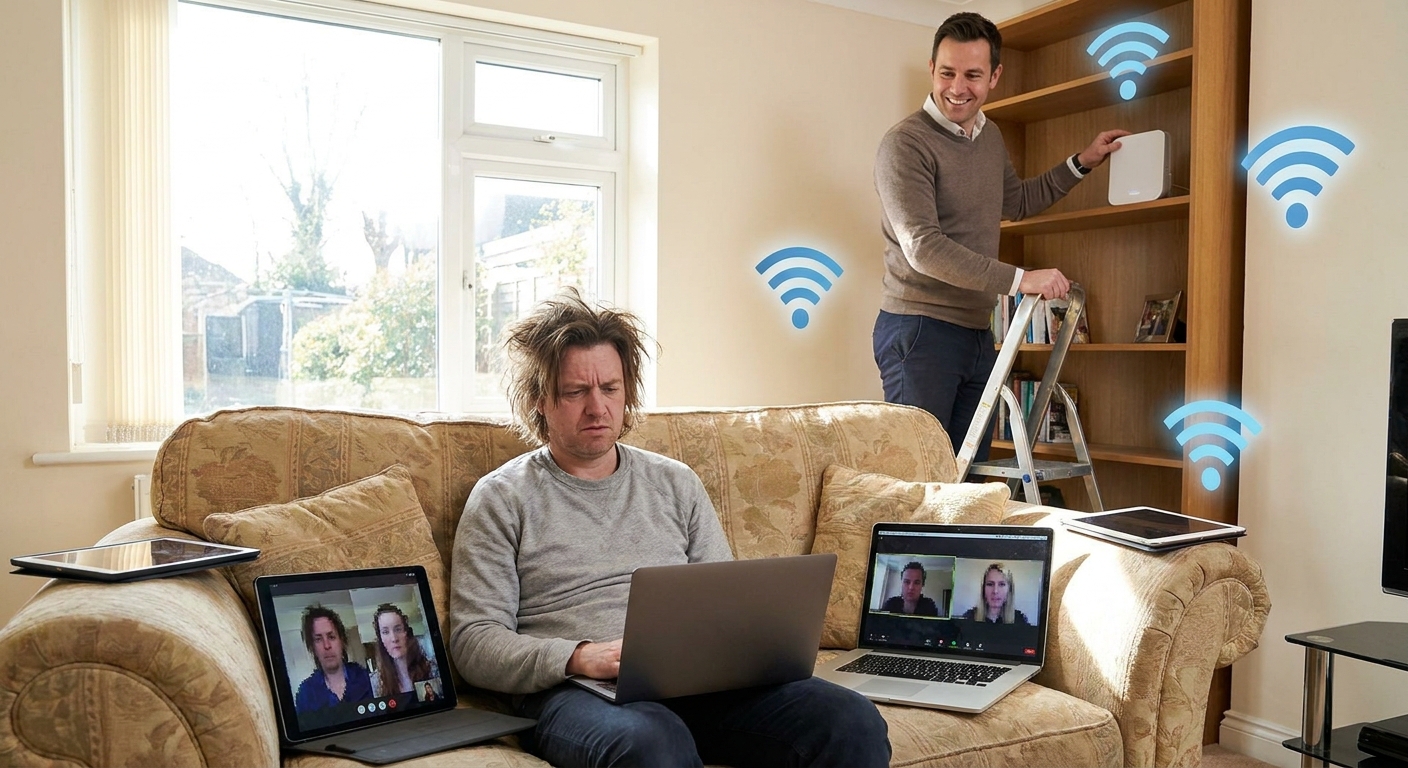
If your video calls freeze, your smart TV buffers, and your bedroom may as well be offline, the problem usually isn’t your ISP’s "lightning fast" plan. It’s your Wi‑Fi setup.
Your Wi‑Fi Isn’t Cursed, Just Badly Set Up
Let’s fix that, room by room, without buying a suitcase full of networking gear.
Step 1: Check What You’re Actually Paying For
Look at your internet plan:
- Typical home plans: 100–500 Mbps down.
- Gigabit plans: ~1 Gbps.
Now do this:
- Plug a laptop directly into the router with an Ethernet cable.
- Run a speed test (search "speed test" in your browser).
If wired speed is way lower than your plan all the time, that’s an ISP problem. Wi‑Fi tweaks won’t fix an under-delivering provider.
If wired is good but Wi‑Fi sucks: congratulations, it’s on you—but that’s fixable.
Step 2: Put the Router Where Humans Actually Live
Your router’s location matters more than its brand.
Bad locations:
- In a closet.
- In the basement behind a water heater.
- Inside a cabinet.
- Next to a thick concrete wall.
Good locations:
- Roughly central in your home.
- On a shelf or table, not on the floor.
- Away from big metal objects and microwaves.
If your ISP gave you a combo modem/router glued to a bad spot, run a longer Ethernet cable and move the router to where it actually helps.
Step 3: Rename Your Network Like a Functional Adult
Log into your router’s admin page. The address is often printed on the router (commonly 192.168.0.1 or 192.168.1.1).
- Open that address in your browser.
- Log in with the admin username/password (also usually on a sticker).
- Find Wi‑Fi / Wireless settings.
Change:
- SSID (network name) to something recognizable and not your full surname + address.
- Wi‑Fi password to something long and unique.
Use WPA2 or WPA3 encryption. If your router is still on WEP, it belongs in a museum.
Step 4: 2.4 GHz vs 5 GHz vs 6 GHz – Which Band You Actually Need
You’ll usually see two networks:
- 2.4 GHz – Slower, but longer range and better through walls.
- 5 GHz – Faster, shorter range.
- 6 GHz (Wi‑Fi 6E routers) – Even faster, even shorter range; great if you’re close.
Practical setup:
- If your router lets you combine bands under one name ("Smart Connect"), try that first. Devices pick what they like.
- If not, name them clearly:
MyHome_2GMyHome_5G
Connect:
- Stationary devices near the router (PCs, TV, console) → 5 GHz/6 GHz.
- Far rooms and IoT junk (sensors, cameras) → 2.4 GHz.
Step 5: Fix Wi‑Fi Dead Zones Without Overbuying
If one room is a reception black hole, you have options.
1. Wi‑Fi Repeater/Extender (Cheapest, Meh Option)
- Price: Often $30–$60.
- Pros: Cheap, simple.
- Cons: Can cut your speed in half; flaky if placed wrong.
Use only if you’re on a budget and just need some signal, not great performance.
2. Mesh Wi‑Fi System (What You Actually Want)
- Price: Typically $150–$300 for a 2–3 unit kit.
- Pros: Seamless roaming, better coverage, easier setup.
- Cons: Costs more, router from ISP basically becomes a modem.
Good for:
- Multi-story homes.
- Long apartments with the ISP drop at one end.
3. Powerline or MoCA (Wired Without Rewiring)
- Uses your electrical wiring (powerline) or coax (MoCA) to move data.
- Price: Around $60–$150 for a kit.
Pair with a small Wi‑Fi access point at the far end.
If you can run a real Ethernet cable, do that instead. You can’t beat it.
Step 6: Prioritize the Stuff That Actually Matters (QoS)
If someone is gaming, someone else is on Zoom, and another person is downloading giant games, guess who suffers? The one trying to talk.
Many routers have QoS (Quality of Service) or "traffic prioritization".
- Log into the router.
- Look for QoS / Traffic Management / Device Priority.
- Mark your work laptop and calls as high priority.
Don’t obsess over fine-tuning every port and protocol. Just give business-critical devices higher priority and move on.
Step 7: Stop Letting Random Devices Leech Your Network
Your Wi‑Fi password from 2015 is probably on every old roommate’s phone.
- Change your Wi‑Fi password.
- Reconnect only devices you actually own or trust.
- If your router supports it, set up a guest network for visitors and IoT junk.
Guest network rules:
- Different password.
- No access to local devices if your router offers that toggle.
Step 8: Update the Router Firmware (Once, Calmly)
Routers, like everything else, ship with bugs.
- Log into the router admin.
- Look for Firmware Update / Software Update.
- Check for updates and apply them.
Do this maybe twice a year, not every week. It’s for security and bug fixes, not magical speed boosts.
If your router’s last update was years ago and its interface looks like Windows XP, it might be time for a new one.
Step 9: When to Replace the Router Instead of Tinkering
Consider upgrading if:
- Your router is 5+ years old.
- It only supports Wi‑Fi 4 (802.11n).
- It struggles with more than 8–10 active devices.
For most homes, skip the flagship gaming router nonsense.
Rough Router Price Tiers
- $60–$100 – Decent basic router for small apartments.
- $120–$200 – Strong dual-band or entry mesh for busy households.
- $200–$400 – High-end or multi-unit mesh systems.
If you have a 1–2 bedroom apartment: a solid midrange router is fine. House with multiple floors: get mesh and stop fighting physics.
Step 10: Quick, Realistic Wi‑Fi Optimization Checklist
Do this in order:
- Move router to a central, open location.
- Rename network, use strong WPA2/WPA3 password.
- Separate 2.4 GHz and 5 GHz if needed.
- Kick out freeloaders and old devices.
- Turn on QoS or device priority for work machines.
- Add a mesh system or extender if you still have dead zones.
Then live with it for a week before buying more gear.
Verdict: Fix Your Setup Before Blaming Your ISP
Most crappy home Wi‑Fi is caused by bad router placement, weak gear from your ISP, and too many devices fighting over bandwidth. You don’t need a $500 gaming router with 12 antennas that looks like a spider robot.
You need:
- A halfway-modern router or mesh kit,
- Smart placement,
- A sane network name/password,
- And some basic prioritization.
Do that, and your next Zoom call might actually finish without you freezing mid‑sentence.