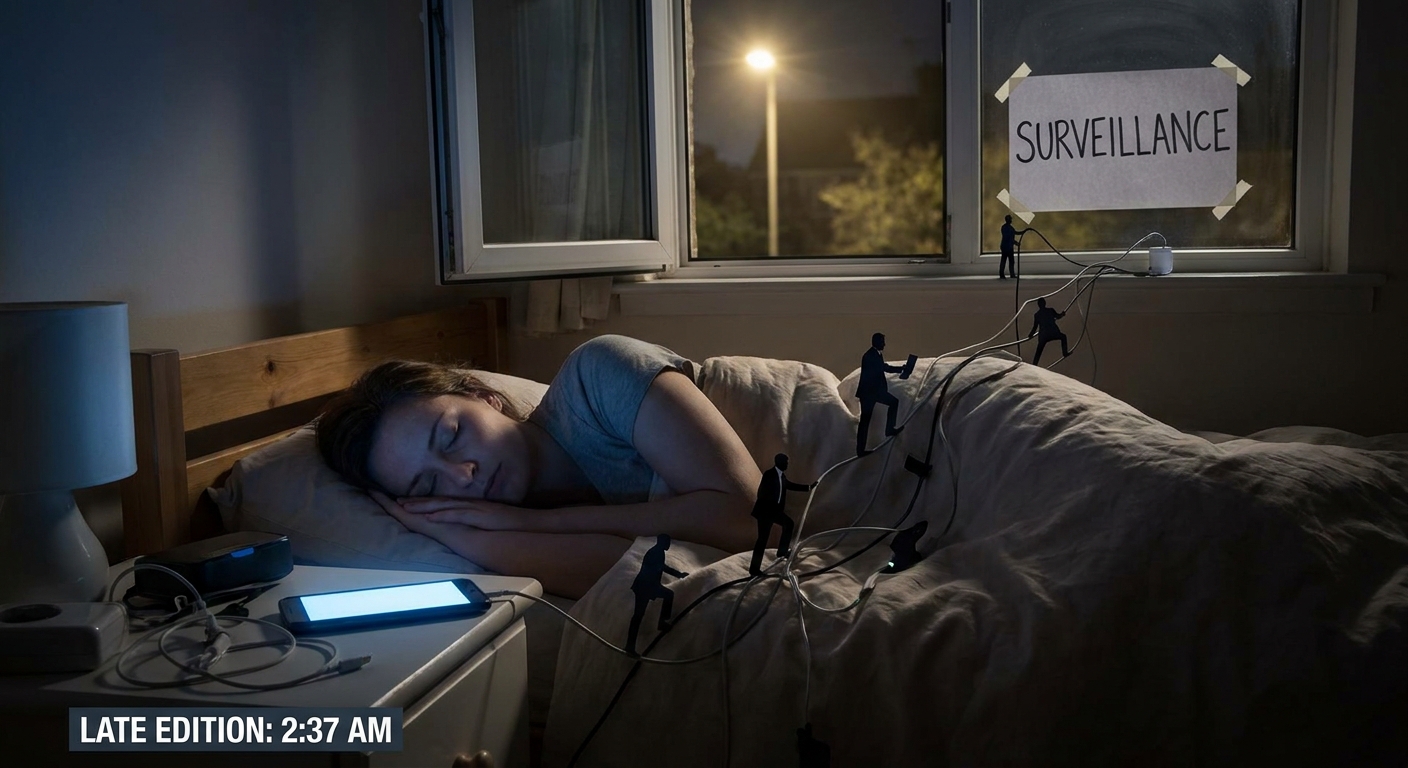
Every time you open a browser, an invisible army of trackers follows you around like you’re the world’s least-interesting celebrity.
You’re Not Browsing the Web, You’re Walking Through a Data Harvest
Ads aren’t just annoying; they’re surveillance with better graphic design. But blocking everything blindly can break sites, block creators’ income, and make the web a janky mess.
Let’s cut the drama and talk about how to:
- Cut out the creepy tracking.
- Keep most of the garbage ads away.
- Still support the stuff you actually like.
The Real Problem Isn’t Ads. It’s Tracking.
Ads themselves are tolerable. What’s rotten is:
- Cross-site tracking
- Fingerprinting (identifying your device without cookies)
- Profiles built about your habits, interests, health, politics, etc.
Translation: They don’t just know you like headphones. They know when you’re stressed, bored, traveling, or probably about to spend.
Blocking this isn’t about being a saint. It’s about not letting random ad brokers know more about you than your friends.
Option 1: The Nuclear Button — Privacy Browsers
If you want to change as little as possible in your life, start by changing your browser.
Solid Privacy-Focused Browsers
- Brave
- Built-in ad & tracker blocker
- Additional options for aggressive blocking
- Free, desktop & mobile
- Firefox
- Enhanced Tracking Protection
- Works with powerful extensions like uBlock Origin
- DuckDuckGo Browser (mobile)
- Strong defaults, built-in tracker blocking
What You Actually Get
- Auto-blocked third-party trackers
- Fewer creepy “How did they know I was searching for that?” moments
- Less CPU wasted on trash ad scripts
Blunt verdict: Swapping to Brave or Firefox + uBlock Origin is the single biggest, easiest upgrade for most people.
Option 2: Extension Power — uBlock Origin and Friends
If you’re sticking with Chrome, Edge, or Firefox, extensions do the heavy lifting.
uBlock Origin (Not to Be Confused with the Knockoffs)
Look for “uBlock Origin” by Raymond Hill in your extension store.
What it does:
- Blocks ads
- Blocks trackers
- Lets you create custom rules if you’re a control freak
Recommended default setup:
- Install uBlock Origin.
- Open its settings.
- Make sure the default filter lists are enabled (they usually are).
- If you’re a power user, enable extra privacy lists (e.g., EasyPrivacy, etc.).
Other Options
- Privacy Badger (EFF)
- Learns to block trackers based on behavior.
- Good as a complement, not a replacement for uBlock.
- HTTPS Everywhere (less crucial now, but still fine)
- Forces encrypted connections where possible.
Blunt verdict: If you use Chrome/Edge without at least uBlock Origin, you’re basically leaving your front door open with a “please don’t steal” post-it.
What This Means for Sites You Actually Like
Here’s the part nobody likes to admit: when you block ads, websites lose money.
For gross ad farms with 13 popups and 19 trackers? Good.
For sane, independent sites trying to stay afloat? Less good.
How to Not Be a Leech
- Whitelist sites you trust and actually read.
- Click uBlock’s icon → disable on that site.
- Prefer sites with:
- Fewer, non-intrusive ads
- Real content, not SEO sludge
- If you really like a site:
- Subscribe if they offer it.
- Toss them a tip if that’s an option.
You don’t owe every site your eyeballs. But if a place consistently gives you value and doesn’t treat you like data livestock, let their ads through or throw them a few bucks.
Mobile: Where Things Get Annoying
Desktop is easy. Mobile is where platforms get in the way.
Android Options
- Brave browser: built-in blocking, probably the easiest.
- Firefox + uBlock Origin: works well if you install from the right add-ons.
- Some ad-blocking DNS apps or VPN-style blockers:
- Block at the network level (not just browser).
- May cost a few bucks a month or be free with limits.
iPhone / iPad Options
Apple doesn’t let you go as wild, but you’ve still got options:
- Safari + content blockers (AdGuard, 1Blocker, etc.)
- Install app → enable it in Settings → Safari → Content Blockers.
- Brave / DuckDuckGo browser: use them instead of Safari when possible.
Blunt verdict: On mobile, use a privacy-focused browser as your default. Anything else is just volunteering for tracking.
DNS and Network-Level Blocking: For the Control Freaks
If you want to block ads and trackers for every device on your network (TVs, consoles, etc.), network-level solutions are your friend.
Options
- Pi-hole
- Runs on a Raspberry Pi or small Linux box.
- Acts as a DNS sinkhole: blocks domains at the network level.
- Great for smart TVs and IoT junk.
- AdGuard Home
- Similar idea to Pi-hole.
- Privacy-focused DNS services (simple mode)
- Some DNS providers block known trackers.
- Change your router’s DNS or device DNS to use them.
- Can break some sites or apps until you whitelist domains.
- Setup is more “Saturday project” than “5-minute tweak.”
Downside:
But Don’t Track Me, Bro: Browser Settings Worth Toggling
Regardless of tools, tweak a few built-in settings:
In Most Browsers
- Disable third-party cookies (or use “Strict” tracking prevention).
- Turn on “Do Not Track” (some sites ignore it, but it’s still worth enabling).
- Clear cookies and site data regularly or set your browser to do it on exit (except where you actually want to stay logged in).
In Chrome / Edge
- Settings → Privacy and security →
- Set tracking protection higher.
- Review site permissions (location, mic, camera).
In Firefox
- Settings → Privacy & Security → Enhanced Tracking Protection:
- Use Strict if you’re tired of being followed around.
Ads You Should Never Tolerate
Regardless of your stance on “supporting the web,” certain things are always garbage.
- Auto-playing video with sound.
- Fake download buttons.
- “You have a virus, click here” scareware.
- Full-page takeover ads that shadow-ban the back button.
If a site leans heavily on this trash, it’s not worth your attention. Block it into oblivion or just leave.
Realistic Privacy, Not Fantasy
You can’t win completely. Companies will still:
- Track aggregated usage.
- Fingerprint your browser to some extent.
- Try to correlate data behind the scenes.
- Stop 80–90% of low-effort tracking.
- Make fingerprinting harder.
- Keep your browsing from being one long, monetized striptease.
But you can:
Minimal Setup for Normal Humans
If you don’t want to live in settings menus, do this:
On desktop:
- Install Brave or Firefox.
- Install uBlock Origin.
- Whitelist 3–5 sites you love that behave like adults.
- Use Brave or DuckDuckGo as your browser.
- On iOS, add a content blocker to Safari.
On mobile:
That’s it. Massive improvement for maybe 15 minutes of effort.
Final Verdict: Be Selectively Selfish
Blocking ads and trackers isn’t about some moral stance on The Future of Journalism. It’s about not volunteering to be optimized, profiled, and sold.
Use blockers. Use privacy browsers. Break the worst sites on purpose.
Then, once in a while, deliberately support the ones that earn it.
The web doesn’t have to be a full-time surveillance job. It can just be… the web again.