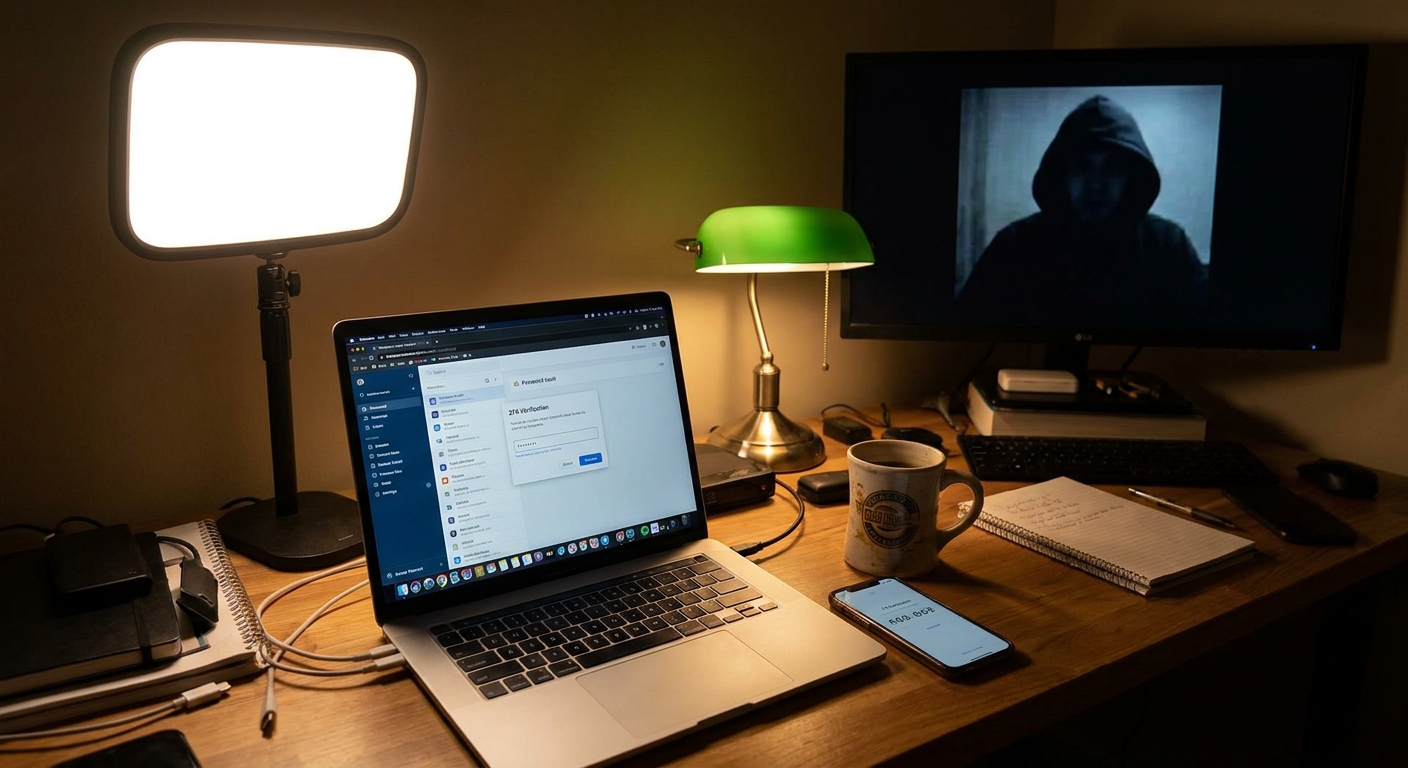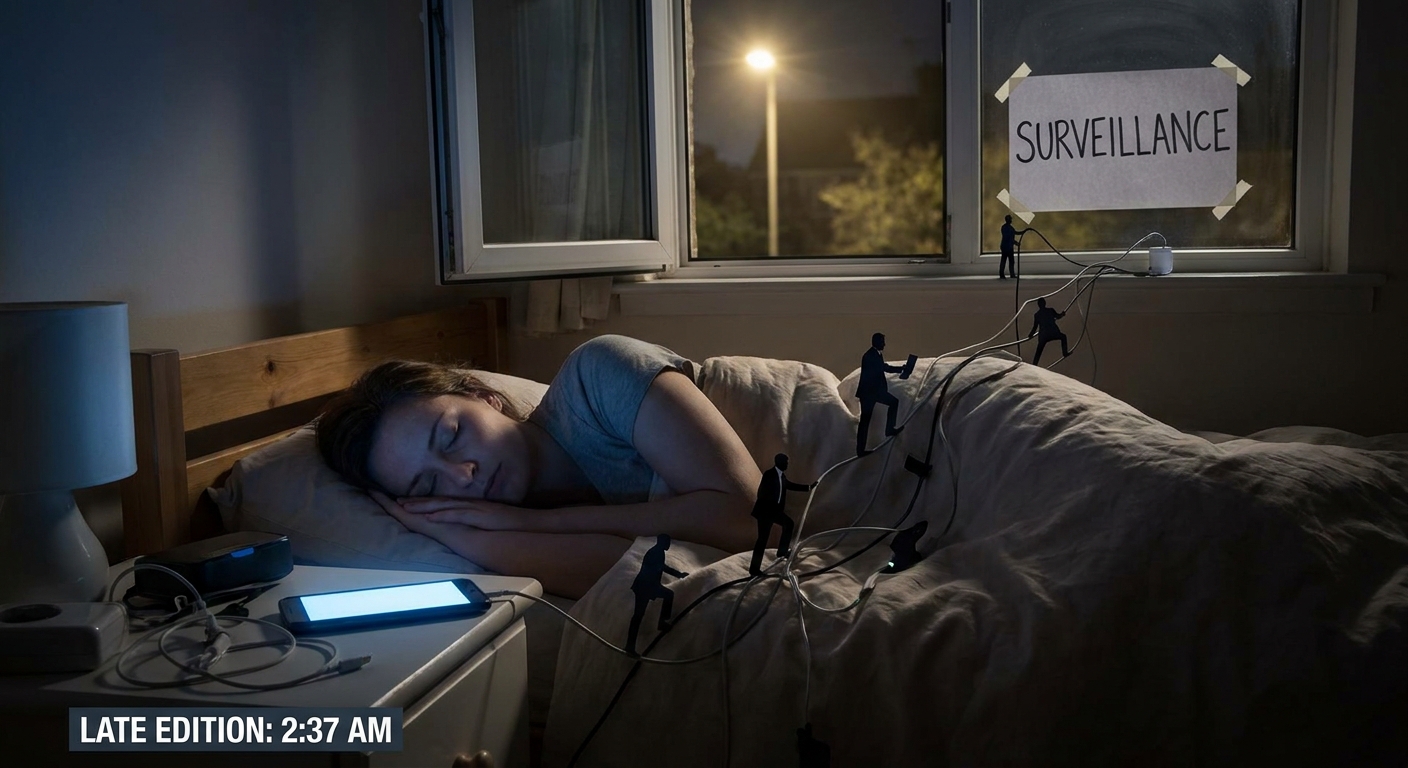
Your phone knows more about you than your family, your therapist, and your search history combined. It tracks where you sleep, what you buy, who you text, and what you doomscroll at 2 a.m. And by default, it happily shares way too much of that with app makers, ad brokers, and sometimes anyone who finds it on a bar table.
Why Your Phone Is the Weakest Link
The good news: you don’t need to be a paranoid hacker living in a bunker to lock it down. You just need 30–45 minutes, a bit of stubbornness, and a willingness to tap “No” a lot.
This guide is blunt, platform-agnostic, and allergic to buzzwords. iOS or Android, budget phone or flagship — same principles, different menus.
Step 1: Fix Your Lock Screen (Seriously)
If your phone isn’t locked properly, nothing else matters.
Use a Proper Lock
- Use: PIN (6+ digits), passphrase, or biometrics + PIN
- Avoid: 4‑digit PINs, swipe patterns (easy to shoulder-surf), “no lock” (you’re not special)
- Android: Settings → Security (or Security & privacy) → Screen lock
- iPhone: Settings → Face ID / Touch ID & Passcode
Where to change it:
Kill Over-Sharing on Lock Screen
Your lock screen shouldn’t be a free preview of your life.
- Turn off message content previews
- Disable “reply from lock screen” for sensitive apps (email, messaging, banking)
- Android: Settings → Notifications → Lock screen → Show sensitive content only when unlocked (or similar)
- iPhone: Settings → Notifications → Show Previews → When Unlocked
How:
Verdict: If your lock screen shows full messages, calendar details, and email subject lines, you’re doing free OSINT for anyone who picks up your phone.
Step 2: Nuke Creepy App Permissions
Most apps ask for way more access than they need because data = money.
What to Do
Audit permissions app-by-app. Focus on:
- Location
- Microphone
- Camera
- Contacts
- Files & Photos
- If the permission isn’t obviously needed for the core function, deny it.
- For location, prefer “While using the app” or “Ask every time”.
- Android: Settings → Privacy → Permission manager (or Permissions)
- iPhone: Settings → Privacy & Security → pick a permission type (Location Services, Microphone, etc.)
Rule of thumb:
Where to do it:
Usual Suspects to Lock Down
- Social apps (Facebook, Instagram, TikTok, Snapchat)
- Remove background location, Bluetooth, nearby devices if possible.
- Random utilities (QR code scanners, flashlight apps, wallpaper apps)
- If they ask for contacts or location: red flag. Replace them.
- Shopping & food apps
- They love tracking. Kill background location and Bluetooth.
Verdict: If an app breaks because you removed a sketchy permission, good. That app is the problem, not you.
Step 3: Location Tracking: Tame It, Don’t Just Curse It
Yes, your phone tracks you. No, you don’t have to accept the default creep level.
System-Level Fixes
- Disable “always-on” location for every app unless it truly needs it (navigation, fitness tracking, maybe weather).
- Turn off Location History / Significant Locations style features if you don’t actually use them.
- Google account (Android or iOS):
- Go to myaccount.google.com → Data & privacy → Location History → Turn off
- iPhone Significant Locations:
- Settings → Privacy & Security → Location Services → System Services → Significant Locations → Off
Examples:
Bonus: Kill Bluetooth “Just Because”
Bluetooth can leak your presence to nearby devices and trackers.
- Turn it off when you’re not using headphones, speakers, or a watch.
- Don’t let random devices “pair” without you explicitly approving.
Verdict: You don’t need your phone logging every coffee shop, friend’s house, and trip to the pharmacy for the next decade.
Step 4: Stop Being the Easiest Phishing Target in the Room
You can have perfect settings and still get wrecked by tapping the wrong link.
Signs You’re Being Phished
- “Your account will be closed in 24 hours” panic messages
- Misspelled domains (paypa1.com, amaz0n-support.com)
- Links sent via SMS/WhatsApp for “security verification”
- Random 2FA codes you didn’t request
What to Do
- Never tap login links from email/SMS.
- Open the app manually or type the URL yourself.
- Enable phishing protection in your browser:
- Chrome: it’s enabled by default (Safe Browsing). Verify via Settings → Privacy and security.
- Safari: also has built-in fraud warnings.
- Use an email alias for junk signups, keep a cleaner email for important accounts.
Verdict: Most “hacks” are just someone scared into typing their password into a fake page. Don’t make it that easy.
Step 5: Messaging: Stop Treating SMS Like It’s Secure
SMS is about as private as a postcard.
Use Encrypted Messaging for Anything That Matters
Good options:
- Signal (free, open source, focused on privacy)
- WhatsApp (end-to-end by default; owned by Meta, so not perfect)
- iMessage (secure between Apple devices, falls back to SMS with Android)
- Enable disappearing messages for sensitive chats if your messenger supports it.
- Disable cloud backups of message content where possible (WhatsApp backups to cloud are a weak point, for example).
Settings to check:
Verdict: Keep SMS for codes and junk, not for sending bank details, passport photos, or your entire emotional state.
Step 6: Backups Without Oversharing Your Life
Cloud backups are convenient, but they love hoarding your data.
What to Check
- Which apps are being backed up?
- Are photos and videos all going to the cloud by default?
- Is your backup encrypted, and who holds the keys?
- Settings → Google → Backup
- Also check your manufacturer’s cloud (Samsung, Xiaomi, etc.)
- Settings → [your name] → iCloud → iCloud Backup
- Review which apps are allowed to use iCloud.
Android:
iPhone:
Minimally Sane Setup
- Enable device backup, but:
- Turn off backup for junk apps.
- Be picky about photos if you don’t want everything in the cloud.
- If possible, use services that support end-to-end encryption for backups, or do local encrypted backups to a computer.
Verdict: Backups are non‑negotiable. Just don’t treat “cloud” as a magical, private vault. It’s someone else’s computer.
Step 7: Browser & Tracking: Stop Feeding the Ads Machine (As Much)
You’ll never be 100% untracked, but you can be way less of an easy target.
On Your Phone’s Browser
- Enable “Do Not Track” (helps a bit, won’t save you alone).
- Block third-party cookies, if your browser allows it.
- Use a content blocker / privacy-focused browser:
- Brave, Firefox with uBlock Origin (where supported), DuckDuckGo.
On Apps
- iPhone:
- Settings → Privacy & Security → Tracking → “Allow Apps to Request to Track” → Off
- Android (Google Ads):
- Settings → Google → Ads → Opt out of Ads Personalization (or related wording)
Verdict: You can’t ghost the internet entirely, but you don’t have to let every random ad network build a creepy psychological profile of you either.
Step 8: Updates, But Do It Smart
Security updates patch the holes attackers actually use. Old devices are low-hanging fruit.
- Turn on auto-updates for OS and apps, but…
- Don’t install
.apkfiles from sketchy websites. - Don’t jailbreak/root your daily driver unless you truly know what you’re doing.
- It’s time to treat it as untrusted.
- Use it only for low-risk stuff or replace it.
If your phone stopped receiving security updates 2+ years ago:
Quick & Dirty Checklist (20-Minute Sprint)
- Set a strong PIN / passcode, enable biometrics.
- Hide notifications content on lock screen.
- Audit permissions: location, mic, camera, contacts.
- Turn off Google Location History / iOS Significant Locations.
- Install Signal (or similar) for sensitive chats.
- Review which apps use cloud backup.
- Enable tracking limits (iOS/Android ad settings).
- Confirm auto-updates are on.
Final Verdict: You Don’t Need to Be Invisible, Just Not the Easiest Target
You’re not going to disappear from the grid unless you throw your phone in a lake and move to a cabin. But that’s not the goal.
The goal is reasonable control:
- If you lose your phone, your life isn’t an open book.
- If a random app gets compromised, it doesn’t expose your entire existence.
- If a company leaks data, they don’t have everything about you because you didn’t give them everything.
Do the steps above once, then revisit every few months. Security isn’t about paranoia. It’s about making your phone work for you instead of constantly snitching on you.