You’ve heard the advice for years: use strong passwords, don’t reuse them, enable two-factor authentication (2FA). You nodded, then went back to reusing the same 3 passwords with creative punctuation.
Yes, Passwords Still Matter, and Yes, Yours Probably Suck
Here’s the problem: attackers don’t need to “hack” you like in the movies. They just:
- Steal one password from a data breach.
- Try it on every major site.
- Profit.
This is called credential stuffing. It works because people are predictable.
The fix is not willpower. It’s tools. Specifically: password managers and 2FA. Boring? Yes. Effective? Absolutely.
Step 1: Get Over the Fear of Password Managers
A password manager is a locked vault that stores all your logins and autofills them for you. You secure it with one strong master password (or passphrase) and optionally biometrics.
Why You Want One
- You only have to remember one strong password.
- You can generate unique, random passwords for every account.
- You stop typing passwords into fake phishing sites because the manager doesn’t autofill there.
Typical Options & Price Ranges
- Bitwarden
- Free tier: more than enough for most people
- Paid: usually under $20/year for premium features
- Open source, good cross-platform support
- 1Password
- Subscription, roughly a few dollars per month
- Slick apps, good for families & teams
- Dashlane, LastPass, etc.
- Similar idea: subscription, browser extensions, apps
- Check recent security history before committing.
- Apple iCloud Keychain / Google Password Manager
- Built-in, free
- Convenient if you’re deep in one ecosystem
- Less flexible if you want cross-platform control
Blunt verdict: If you’re not using any password manager, you are the lowest-effort target.
Step 2: How to Actually Set One Up (Without Rage Quitting)
Let’s assume you pick Bitwarden or 1Password, but the process is similar across tools.
1. Create Your Account
- Go to the official website (type it, don’t follow a random ad).
- Create an account.
- Set a master password:
- Use a passphrase:
correct horse staple soda lamp(but not that exact one). - 4–6 random words, not song lyrics or quotes.
Write it down once and store it physically somewhere safe while you get used to it.
2. Install Everywhere
- Browser extension (Chrome, Firefox, Edge, Safari)
- Phone app (Android / iOS)
- Desktop app if you want offline access & more control
Log in once on each device and enable biometrics where supported.
3. Import or Start Fresh
- If your browser has saved passwords:
- Export them (usually Settings → Passwords → Export).
- Import into your password manager.
- If that sounds like a chore, start fresh:
- As you log in to sites over a week or two, save each to the manager and change weak/reused passwords.
4. Generate Strong Passwords by Default
In your password manager:
- Set generator defaults to at least 16 characters, mixed types.
- Use longer (20+) for critical stuff (email, bank, cloud storage).
Step 3: 2FA — The “Annoying” Extra Step That Kills Most Attacks
Passwords get leaked. 2FA is your backup.
Types of 2FA (From “Okay” to “Better”)
- SMS codes
- Better than nothing
- Vulnerable to SIM swapping, interception
- Authenticator apps (TOTP codes)
- Google Authenticator, Authy, 1Password’s built-in, etc.
- Way more secure than SMS
- Hardware keys (security keys)
- YubiKey, SoloKey, etc.
- Strongest option, great for power users & critical accounts
What to Protect First
Turn on 2FA for accounts that are basically skeleton keys to your life:
Email accounts (especially the one used for password resets)
Password manager account
Cloud storage (Google, iCloud, OneDrive, Dropbox)
4. Financials (banks, PayPal, crypto, etc.)
Major shopping accounts (Amazon, Apple, Google Play)
Rough How-To (Applies to Most Sites)
- Log in on desktop.
- Go to Settings → Security → Two-factor authentication (wording varies).
- Choose App-based or Authenticator app.
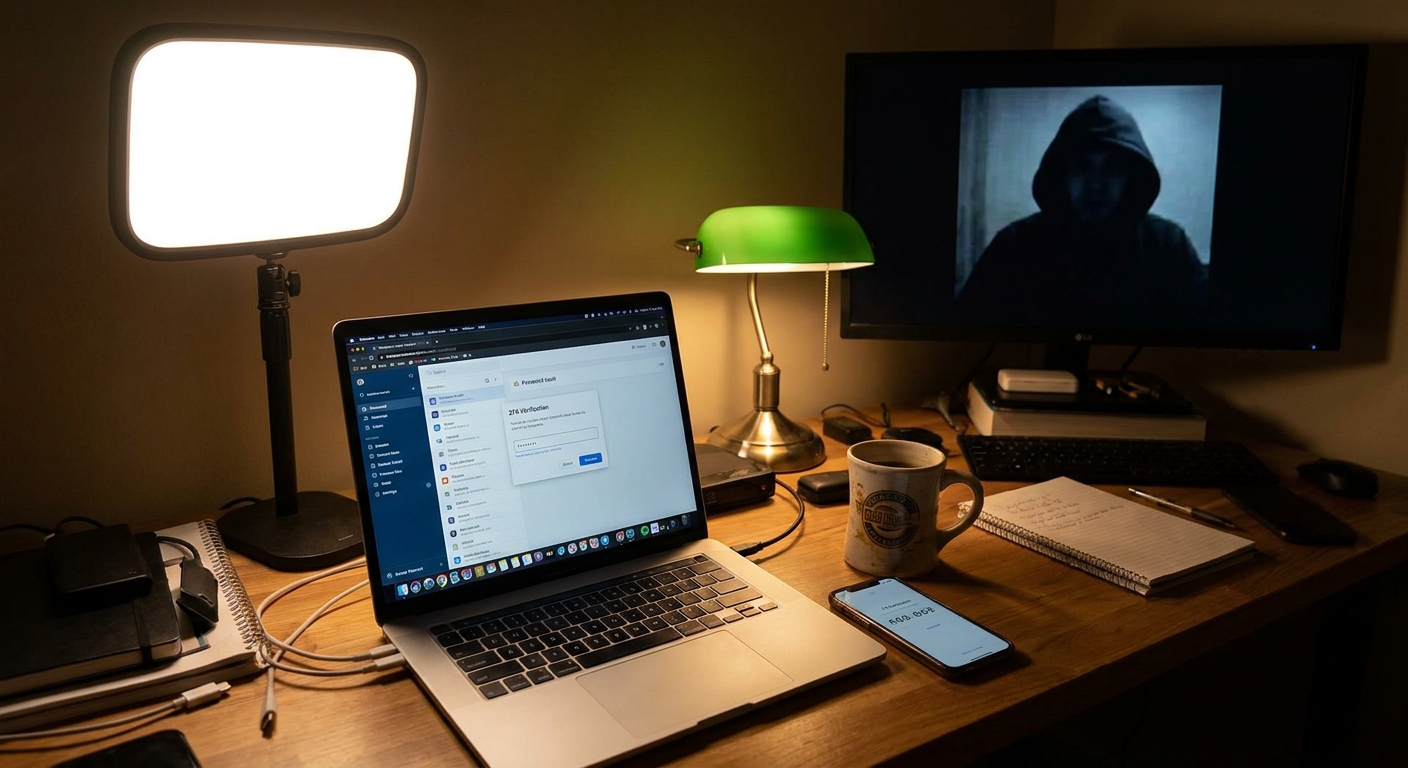
- Scan the QR code using your authenticator app or password manager.
- Save backup codes offline (print or write down, don’t screenshot to cloud).
Repeat for any account where losing access would ruin your week.
Step 4: SMS 2FA: Use It Wisely, Not Blindly
If the only 2FA option is SMS, it’s still worth enabling — especially for financial accounts.
But:
- Don’t share codes with anyone. Ever.
- If you get a random code you didn’t request, assume someone is trying to log in.
- If a "support agent" asks for your code, hang up. They’re scamming you.
Blunt truth: Attackers don’t hack 2FA; they ask you for the code while pretending to be support.
Step 5: Handling “I Forgot My Password” the Smart Way
Once you use a password manager, forgetting a password is not catastrophic, it’s just annoying.
If You Lose Access to a Single Account
- Use the password manager to retrieve the login.
- If that fails, hit “Forgot password” and reset using email.
- If that fails and there’s no recovery path: yeah, that might be gone.
If You Lose Your Master Password
- Many password managers cannot recover it for you by design.
- If you turned on recovery options (e.g., recovery key), use them.
- If you didn’t, you’re done. You’ll start over. This is why writing down the master password once matters.
Step 6: For Power Users: Hardware Keys Without the Drama
If you rely on online accounts for work, finances, or anything critical, get a hardware security key.
What They Do
- Store cryptographic keys.
- When a site supports them (Google, Microsoft, some banks, GitHub, etc.), you plug in the key or tap it via NFC.
- Phishing-resistant: even a perfect fake login page can’t use your hardware key for the real site.
Basic Setup Flow
- Buy 2 keys (one primary, one backup) — expect around $40–$60 each.
- Register them on important accounts under Security keys or Passkeys/Security keys in account security.
- Store the backup in a safe place (literally a safe, or locked drawer).
Is this overkill for casual users? Probably. For power users or high-risk people? Worth it.
Step 7: Red Flags and Habits That Keep You Out of Trouble
Even with good passwords and 2FA, your behavior matters.
Huge Red Flags
- Logging into anything important on random public PCs.
- Typing passwords into sites you reached via email links.
- Reusing old favorites like
Summer2024!across accounts.
Simple Habits
- Let your password manager autofill; if it doesn’t autofill, double-check the URL.
- Don’t store passwords in plain text notes, email drafts, or chat.
- Don’t share logins. If you must share (streaming, etc.), create separate profiles or temporary passwords.
Minimal Effort, Maximum Gain Checklist
Do these this week and your security posture jumps dramatically:
- Install a password manager and set a strong master passphrase.
- Turn on 2FA for your email, bank, and password manager.
- Rotate reused passwords on your top 10–20 important accounts.
- Stop letting your browser or random apps save passwords casually.
- Write down backup codes and your master password once, store them safely.
Final Verdict: Tools Over Willpower
You will not “just remember” 100+ strong, unique passwords. Nobody does. That’s why people keep getting owned by old leaks and reused logins.
Use tools that:
- Generate strong passwords.
- Store them securely.
- Back them up.
- Add a second lock (2FA) in front of the important stuff.
Is it thrilling? No. Is it the difference between “mild inconvenience” and “my whole digital life is on fire”? Absolutely.
Do the boring work once. Your future self will never know how many disasters you quietly dodged.