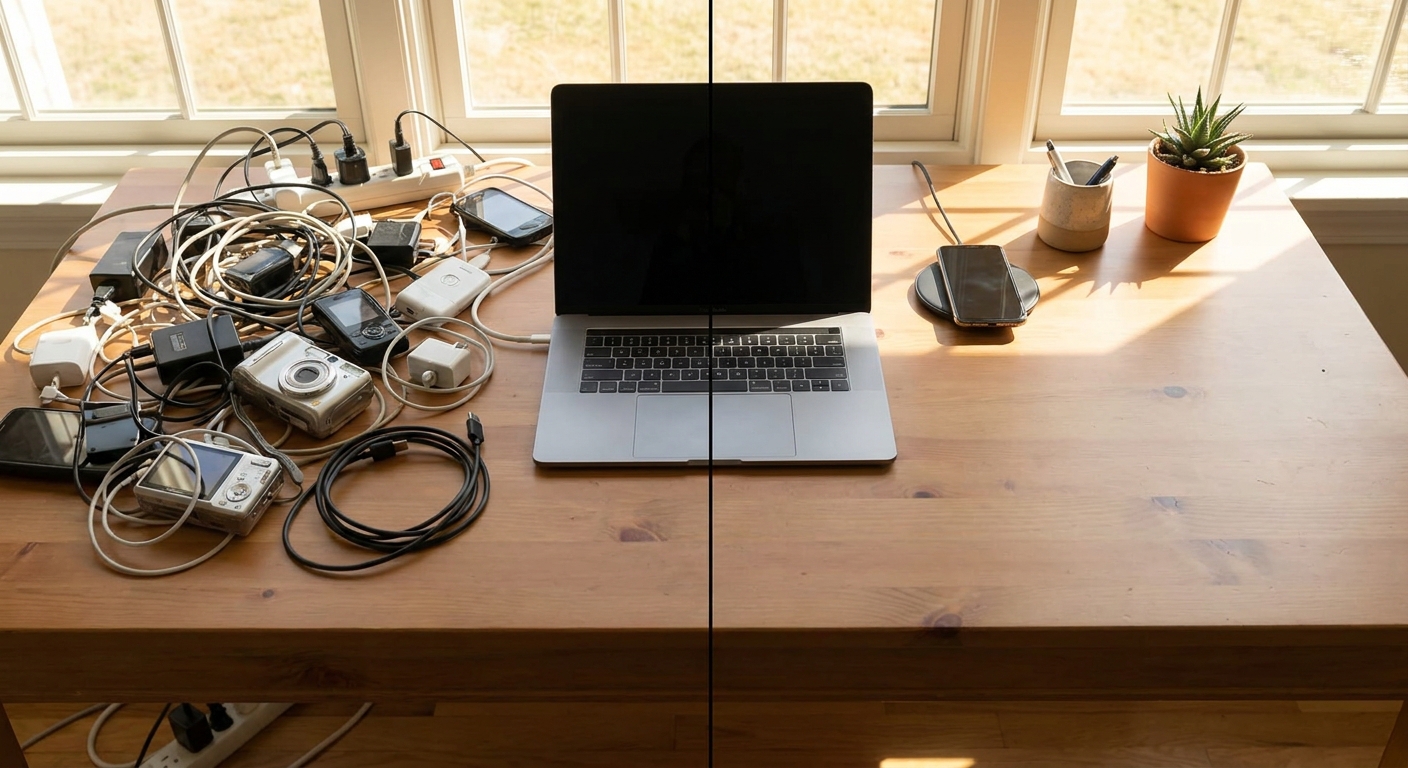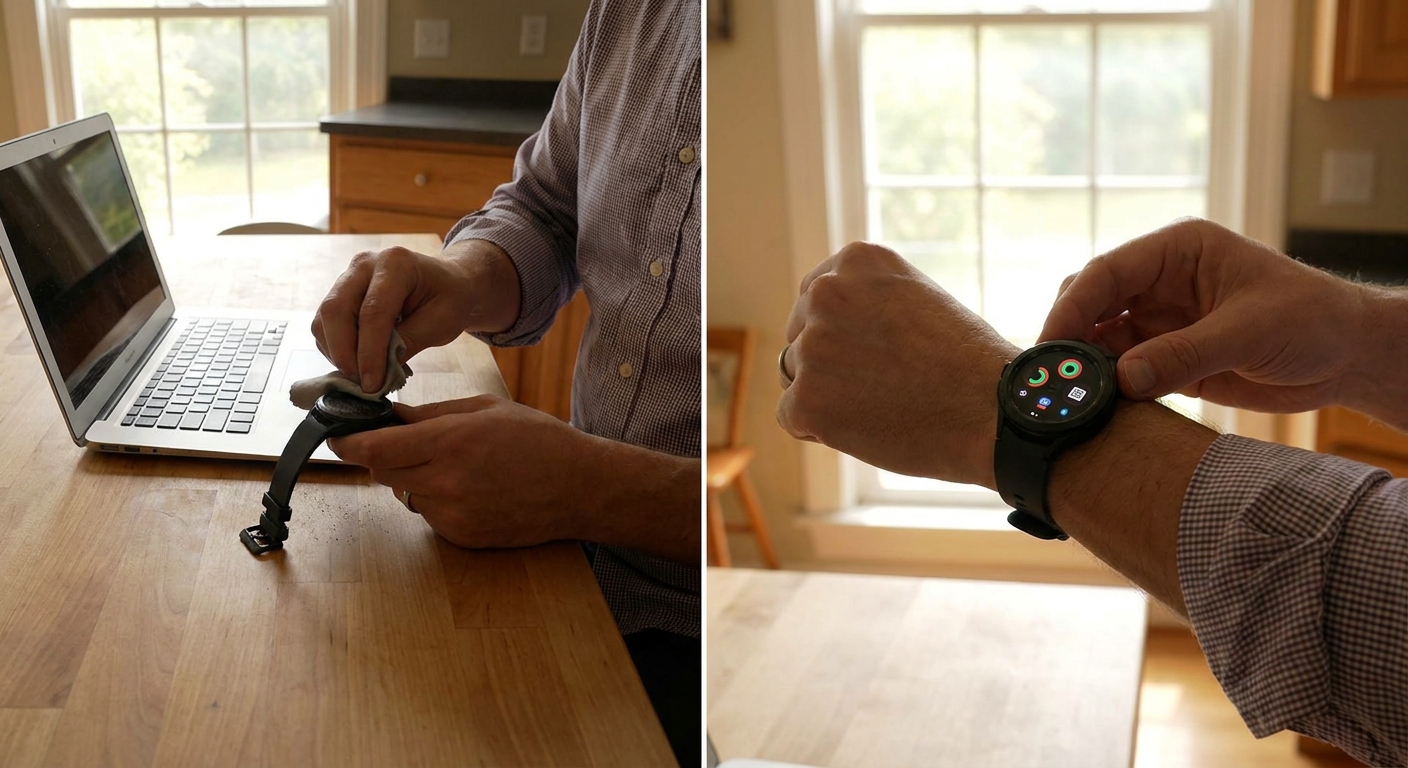
If your smartwatch is basically an overpriced clock that buzzes too much, that’s not entirely your fault. Most watches ship with:
Your Smartwatch Isn’t Useless. You Just Never Set It Up Properly.
- Every notification turned on
- Half‑baked fitness settings
- Random apps you’ll never touch
Let’s turn it into something that actually earns its spot on your wrist.
We’ll cover a step‑by‑step setup that works across ecosystems (Apple Watch, Wear OS, Galaxy Watch, etc.):
- Notifications you should keep
- Fitness settings that don’t lie to you
- Battery tweaks that matter
- Everyday automations that save you actual time
Grab your watch, open the companion app on your phone, and fix it as you read.
Step 1: Kill 80% of Your Notifications
This is the number one reason people give up on smartwatches: constant buzzing.
1.1 Decide What Your Wrist Is For
Your watch should only interrupt you for:
- Time‑sensitive stuff
- Things you can act on right away
- Calls
- Messages from actual humans you care about
- Calendar events and reminders
- Critical app alerts (bank, 2FA, delivery)
That usually means:
Everything else? Phone only.
1.2 What to Turn Off (Do This Now)
In the watch app on your phone, go to Notifications and:
- Turn off social media spam (likes, follows, “friend suggestions”).
- Turn off generic news alerts unless you like your wrist fear‑mongered.
- Turn off “app suggestions,” random tips, and “discover” prompts.
Blunt rule: If you wouldn’t want that notification waking you up at 3 AM, it probably doesn’t belong on your wrist.
Step 2: Fix the Watch Face (and Complications)
Stop using the default face just because it was there.
2.1 Pick a Practical Watch Face
You want a face that:
- Shows the time clearly (wild concept)
- Leaves room for 3–4 useful complications (small widgets)
Skip overly busy or super‑artistic faces for daily use. They’re fun for a day and then annoying.
2.2 Complications That Are Actually Useful
Good picks:
- Next calendar event
- Activity rings/steps
- Weather (temperature + conditions)
- Timer/stopwatch shortcut
- Heart rate shortcut
- Battery percentage front and center (unless your watch barely survives the day)
- Complications you never tap
- What time it is
- What’s next
- Whether you should bring a jacket
- If you’ve moved your body at all today
Bad picks:
You should be able to glance at your wrist and know:
Step 3: Set Up Fitness Without Lying to Yourself
Your watch can help you be less sedentary. It cannot magically turn you into an athlete via push notifications.
3.1 Start with Realistic Move Goals
If your watch asks for a daily move or calorie goal:
- Take whatever aggressive number it proposes.
- Cut it down to something you’re 90% sure you can hit most days.
The point is consistency, not flexing.
3.2 Enable Auto-Workout Detection (If It’s Decent)
If your watch supports it, turn on auto‑detect for walking, running, and cycling. It’s not perfect, but it catches the “I forgot to start a workout” moments.
3.3 Pick 1–2 Metrics to Actually Care About
Avoid metrics overload.
Good starter combo:
- Daily steps (or total active time)
- Resting heart rate trend over weeks
These give you a real sense of activity without obsessing over every tiny data point.
Step 4: Battery Life Tweaks That Make a Difference
You don’t have to cripple your watch to get through the day.
4.1 Change Display Settings
- Turn off always‑on display if you’re struggling to hit a full day.
- Reduce screen brightness one notch and see if you still find it readable.
- Reduce or disable unnecessary screen wake gestures if you keep triggering the screen by accident.
4.2 Prune Background Stuff
- Disable background heart rate during sleep only if your battery is truly suffering and you don’t care about sleep data.
- Turn off constant SpO2 (blood oxygen) tracking if you never look at it. Those sensors love battery.
Aim for a watch that comfortably hits at least one full day with your usual usage. If you’re barely making it, back off a feature or two.
Step 5: Everyday Shortcuts That Actually Save Time
Here’s where the smartwatch stops being a notification toy and becomes useful.
5.1 Timers and Alarms
Use your watch as your default timer machine:
- Cooking
- Laundry
- Work sprints (25–50 min)
- Stretch/reminder breaks
Set a few preset timers on watches that support it (e.g., 5, 10, 25 minutes) so you’re not spinning wheels on a dial every time.
5.2 Quick Replies
Set up custom quick replies for messages in your watch app. Examples:
- “Can’t talk, will reply in 10–15.”
- “Commuting. I’ll check this when I arrive.”
- “In a meeting, call you later.”
These cover 70% of situations where you’d otherwise fumble for your phone.
5.3 Contactless Payments
If your watch supports it:
- Add your main card to the wallet app.
- Practice using it once at a low‑pressure checkout (supermarket, not a busy bar).
- Set a PIN or biometric if required.
You’ll use this more than you think once you trust it.
Step 6: Sleep Tracking Without Turning It Into Homework
Sleep tracking can be useful, but don’t let it boss you around.
6.1 Decide If You Actually Want Sleep Data
Pros:
- Shows bedtime/wake time consistency
- Highlights terrible late‑night habits
- One more thing to feel guilty about
- Some watches aren’t comfortable overnight
Cons:
If you’re in, turn on sleep tracking and sleep mode/Do Not Disturb.
6.2 Use Data for Trends, Not Panic
Look at weekly averages:
- Are you consistently going to bed later than you think?
- Are you waking up a lot? (Maybe tweak room temperature, noise, etc.)
Don’t obsess over nightly “sleep scores.” You lived the night; you know if it was bad.
Step 7: Trim the App Fat
You don’t need 30 apps on your wrist.
In the watch app on your phone, uninstall or hide:
- Games (if you really want to game, you have a phone)
- Rarely used utilities
- Apps that just mirror phone notifications without adding value
- Replace phone checks (weather, calendar, to‑do, timers)
- Use sensors meaningfully (fitness, heart rate, workout tracking)
Keep the apps that:
Step 8: Create One Automation That Makes You Smile Daily
You don’t need to be a power user. Just set up one small routine that’s genuinely useful.
Ideas:
- Morning: At a certain time, your watch shows your first calendar event, current weather, and a gentle silent alarm.
- Focus time: Trigger a mode that silences all but urgent calls and shows a timer.
- Workout mode: Starting a workout automatically turns on Do Not Disturb and maybe a specific watch face.
Even basic systems (Apple’s Focus modes, simple routines on other platforms) can do a lot here.
Maintenance: Once a Month, Not Every Weekend
Once a month:
- Check which apps actually got used. Remove the freeloaders.
- See if your goals (move, stand, exercise) still make sense. Adjust if needed.
- Make sure software/firmware updates installed.
That’s it. The watch should serve you, not become another hobby to manage.
Verdict: Make Your Watch Boringly Useful
A good smartwatch routine looks like this:
- It taps you sparingly for important stuff.
- It quietly logs your activity without drama.
- It replaces a few annoying pocket‑phone moments every day.
- Screaming every time someone likes a post: fix notifications.
- Dead by dinner: fix display and background sensors.
- Just showing time: fix the face, complications, and shortcuts.
If your watch is:
Tune it once, live better daily. Or let it keep being a fancy bracelet. Your call.